Why Can't I Repost on TikTok? 6 Fixes, Plus How to Delete a Repost in 2026 and 2027
Why can't you repost on TikTok? Where the Repost button moved, 6 fixes from TikTok's own help pages, and how to delete a repost or unrepost in seconds.
In this article
Quick answer: If you can't repost on TikTok, the button has usually just moved: tap Share, then Repost, or press and hold the video. If it's still missing, update the app, switch between Wi-Fi and mobile data, clear your cache and restart. Repeated rule breaks can also restrict some features on your account.
You find a video your friends need to see, look for the Repost button, and it isn't where it used to be. Or you tap it and nothing happens.
So why can't I repost on TikTok? Blame a moved button or an app glitch, most of the time. This guide works through each cause using TikTok's own help pages, then shows how to repost, how to delete a repost and who can see what you share.
Why can't I repost on TikTok?
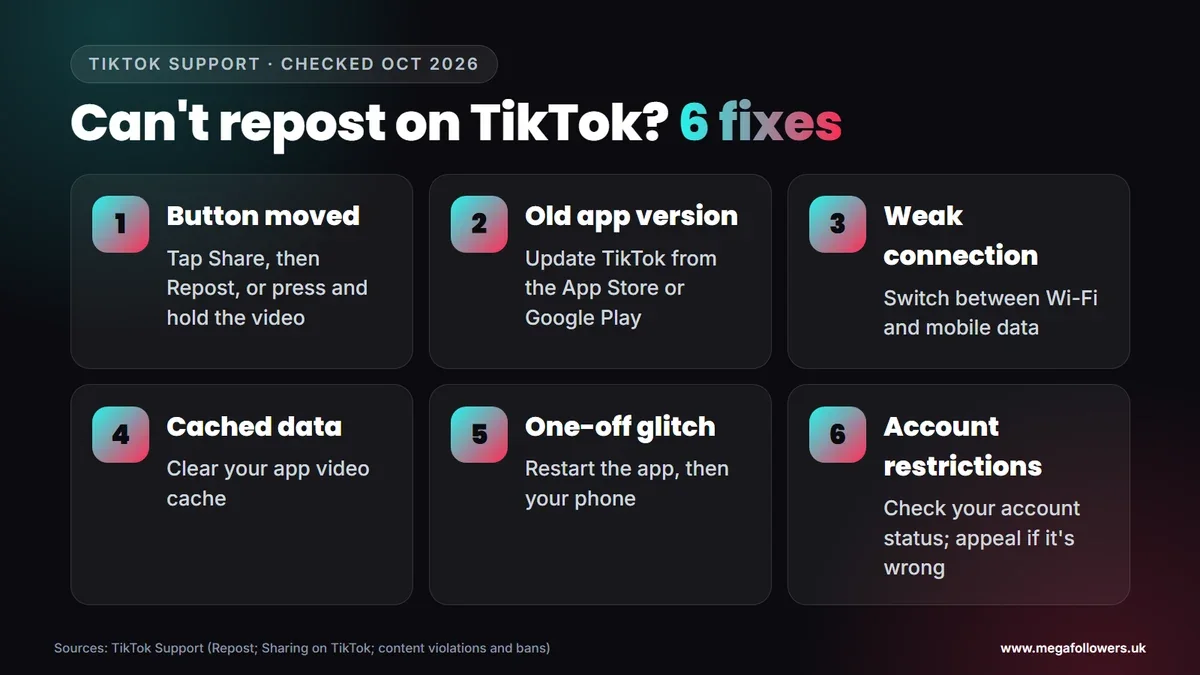
There are six common reasons, and most take a minute to fix. According to the Repost help page lists three ways to repost, and none of them is a button on the main screen. That's why so many people think the feature has gone.
| Problem | Likely cause | Fix |
|---|---|---|
| No Repost button on the video | It lives in the Share menu now | Tap Share, then Repost, or press and hold the video |
| Repost option missing entirely | Out-of-date app | Update TikTok from the App Store or Google Play |
| Repost won't go through | Weak connection | Switch between Wi-Fi and mobile data |
| App freezes or nothing happens | Cached data | Clear your app video cache |
| Still stuck after updating | A glitch in the session | Restart the app and your phone |
| Features blocked on your account | Restrictions after rule breaks | Check your account status and appeal if it's wrong |
What most guides get wrong: they say TikTok removed reposting. It didn't. The Repost option sits inside the Share menu, and pressing and holding a video brings it up too.
The button moved
Repost isn't on the side bar with likes and comments. You'll find it after tapping the Share button, or by pressing and holding the video. If a friend has already reposted the video, you can also tap their profile photo at the bottom of the screen, then Repost. TikTok has shuffled these menus more than once, so a guide written even a year ago can send you hunting in the wrong place, which is the main reason people assume TikTok scrapped the feature.
Your app needs updating
TikTok's own sharing troubleshooting steps include making sure you have the latest version of the app. Features move between versions, so an older app may not show the option where newer guides say it is.
Connection and cache problems
A repost needs a working connection. Switch between Wi-Fi and mobile data first, as TikTok suggests, then clear your app video cache if sharing still fails. Simple.
A restart clears the rest
When nothing else works, restart the TikTok app and then your phone. It's TikTok's own last troubleshooting step, and it fixes most one-off glitches.
Your account has restrictions
Rule breaks can limit what you can do. Its account enforcement help page says repeated violations may lower your account status and lead to temporary restrictions on certain platform features, or a permanent ban. Check your account status, and appeal if a decision looks wrong.
It's a new account
No repost limits for new accounts appear in TikTok's help pages. If a brand-new account can't repost, work through the fixes above first, because an update or restart solves most cases. Still nothing after all six? Log out, log back in and try again on a different connection before you contact TikTok through the in-app help.
How to repost on TikTok
Reposting shares a video with your friends and community on their For You feeds. It looks like any other post in the feed, except TikTok labels it as a repost and adds your profile photo and nickname so people can see who passed it on. To repost:
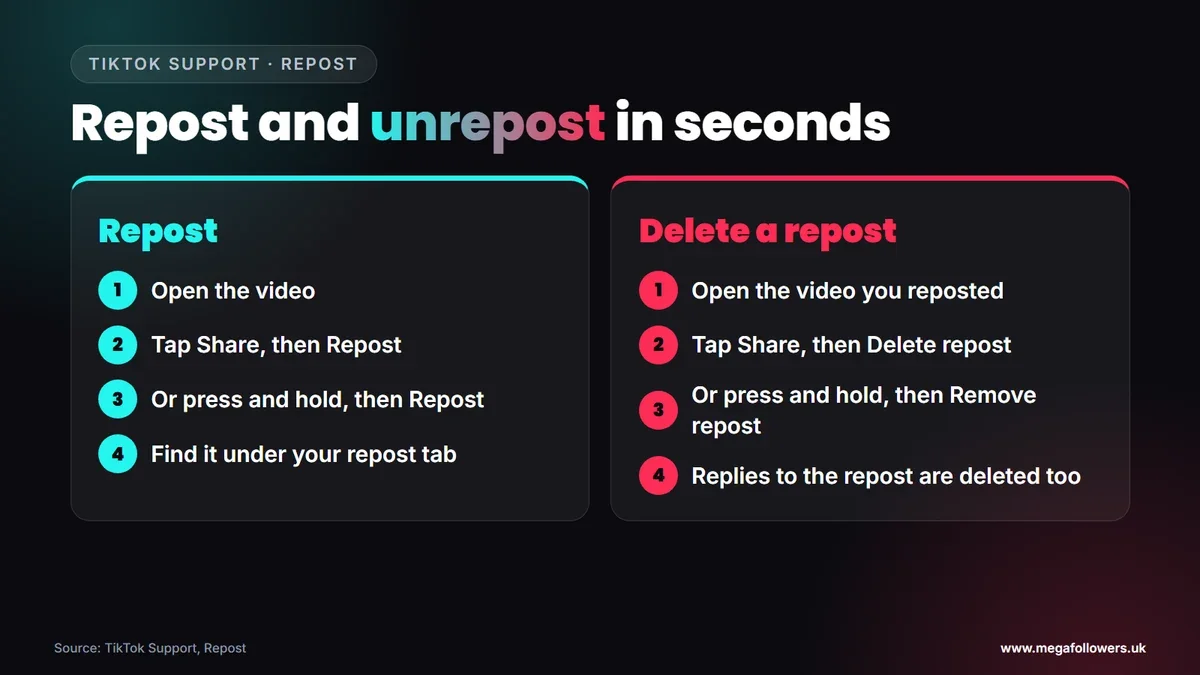
- Open the video in the TikTok app.
- Tap Share, then tap Repost.
- Or press and hold the video, then tap Repost.
- Or, if a friend has reposted it, tap their profile photo at the bottom, then Repost.
There's no confirmation step. TikTok reposts the video as soon as you tap, and everything you've reposted lives on your profile under the repost tab.
You can also reply to someone else's repost. Tap your friend's profile photo at the bottom of the reposted video, tap Reply, type your message and send it.
How to delete a repost on TikTok
Deleting a repost, sometimes called unreposting, is just as quick. TikTok gives three ways:
- Open the video you reposted, tap Share, then tap Delete repost.
- Or press and hold the video, then tap Remove repost.
- Or tap your profile photo at the bottom of the video, then tap Remove.
- To remove just one reply instead, tap your profile photo at the bottom, press and hold the reply, then tap Delete.
Think before you delete. Removing a repost also deletes every reply to it, so any conversation under it disappears too. The original video stays on the creator's profile, with its own likes and comments untouched, because you're only taking back your share of it.
Can you delete all your reposts at once?
TikTok's help page only describes removing reposts one at a time. Some outside apps promise bulk removal, but they ask you to connect your TikTok login, which puts your account at risk. Removing them one by one from your repost tab is slower, but safe.
Who can see your reposts on TikTok?
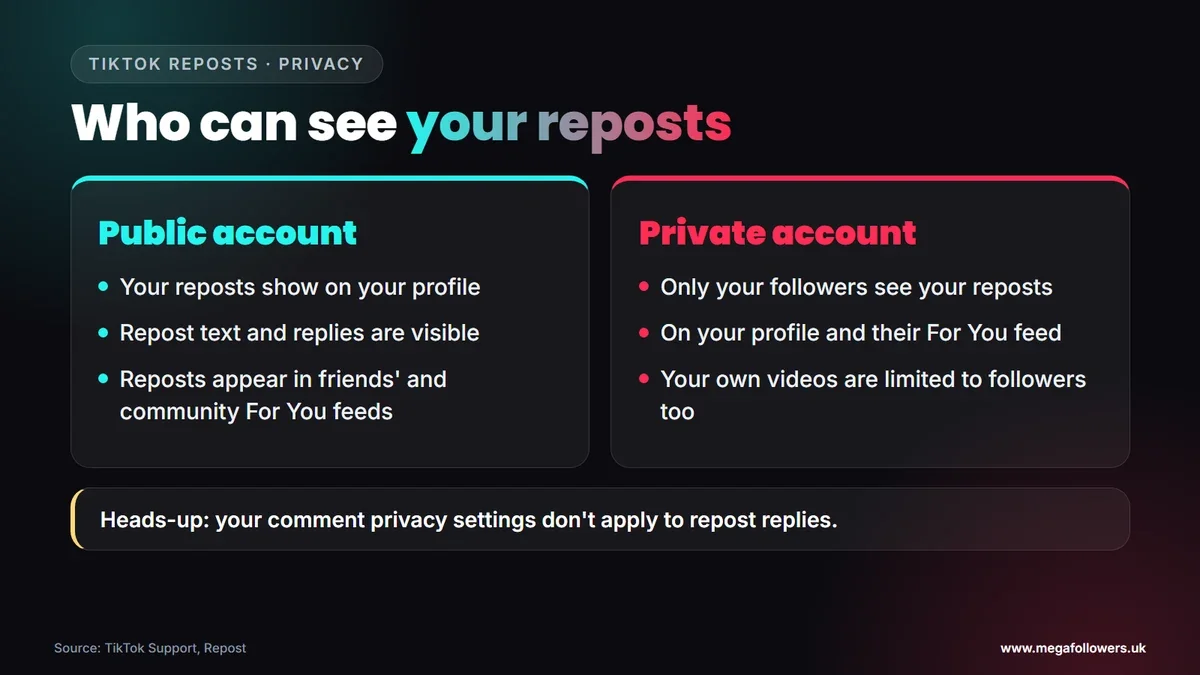
That depends on whether your account is public or private. TikTok says that on a public account, your reposts, repost text and repost replies are visible to others on your profile. On a private account, only your followers can see your reposted content, on your profile and on their For You feed.
One detail catches people out. Your comment privacy settings don't apply to repost replies, so anyone who can see your repost can reply to it, even if you've limited who can comment on your own videos. Worth knowing.
If you'd rather keep your reposts to a smaller circle, a private account is the setting TikTok documents. Bear in mind it also limits who sees your own videos.
Other ways to share a TikTok if Repost won't work
Repost isn't the only option. TikTok's sharing page describes the standard route for sending a post anywhere:
- Open the post in the TikTok app.
- Tap the Share button on the side of the post.
- Choose how you'd like to share it, such as a direct message or another app.
- Follow the steps for the platform you pick.
The same Share menu works for profiles, sounds and hashtags, so you can pass on a creator or a trend as well as a single video. TikTok may also prompt you to share some For You posts with people you know, through a direct message.
Why reposts matter for creators
Every repost puts a video in front of someone's friends and community, labelled with a name they know. For creators, that's reach you didn't have to earn from the algorithm alone.
People repost videos they think others will enjoy, so a strong hook and a clear point help. A video that already shows healthy likes and views also looks more worth passing on.
What could change in 2027
The UK government said on 15 July 2026 that it expects its ban on social media services for under-16s to start in spring 2027. Younger audiences will shrink. If a lot of your viewers are teenagers, expect fewer of them to see, share and reply to your reposts from that point on.
Our view: TikTok moves features around often, which is exactly how Repost ended up hidden in the Share menu. Check TikTok's help page whenever a button vanishes, because the official steps change faster than most guides.
Make the video worth reposting
People repost what they think their friends will enjoy. Numbers on screen help them decide, because a video that already looks popular feels safer to share.
Mega Followers UK helps with that first impression. TikTok likes, TikTok views and TikTok followers come from real-looking accounts, with no password required and a 30-day refill guarantee. For the content side, read why your TikTok views might be low and how to get more likes on TikTok, or see our FAQs.
FAQ: reposting on TikTok
Why did the Repost button disappear on TikTok?
It didn't disappear; it moved. TikTok's help page puts Repost inside the Share menu, and you can also press and hold a video to find it. Neither showing the option? Update the app, switch between Wi-Fi and mobile data, clear your cache and restart your phone.
How do I unrepost on TikTok?
Open the video you reposted, tap Share, then Delete repost. You can also press and hold the video and tap Remove repost, or tap your profile photo at the bottom and choose Remove. Deleting a repost also deletes any replies to it.
Can people see what I repost on TikTok?
Yes, if your account is public. Your reposts, repost text and replies appear on your profile, and reposts show up in your friends' and community's For You feeds with your name on them. On a private account, only your followers can see your reposts.
What happens to replies when I delete a repost?
They go too. TikTok says that when you remove a repost, all related replies are also deleted. If you only want to get rid of one reply, open the reposted video, tap your profile photo at the bottom, press and hold the reply, then tap Delete.
Why can't I repost on my new TikTok account?
TikTok doesn't publish any repost limits for new accounts. Start with the usual fixes: look for Repost in the Share menu, update the app, switch connection, clear the cache and restart. Had any warnings? Check your account status for feature restrictions too.
Can I hide my reposts on TikTok?
Partly. The documented option is a private account, which limits your reposts to your followers, though it also hides your own videos from everyone else. On a public account, anyone who can see your profile can see your reposts and reply to them.